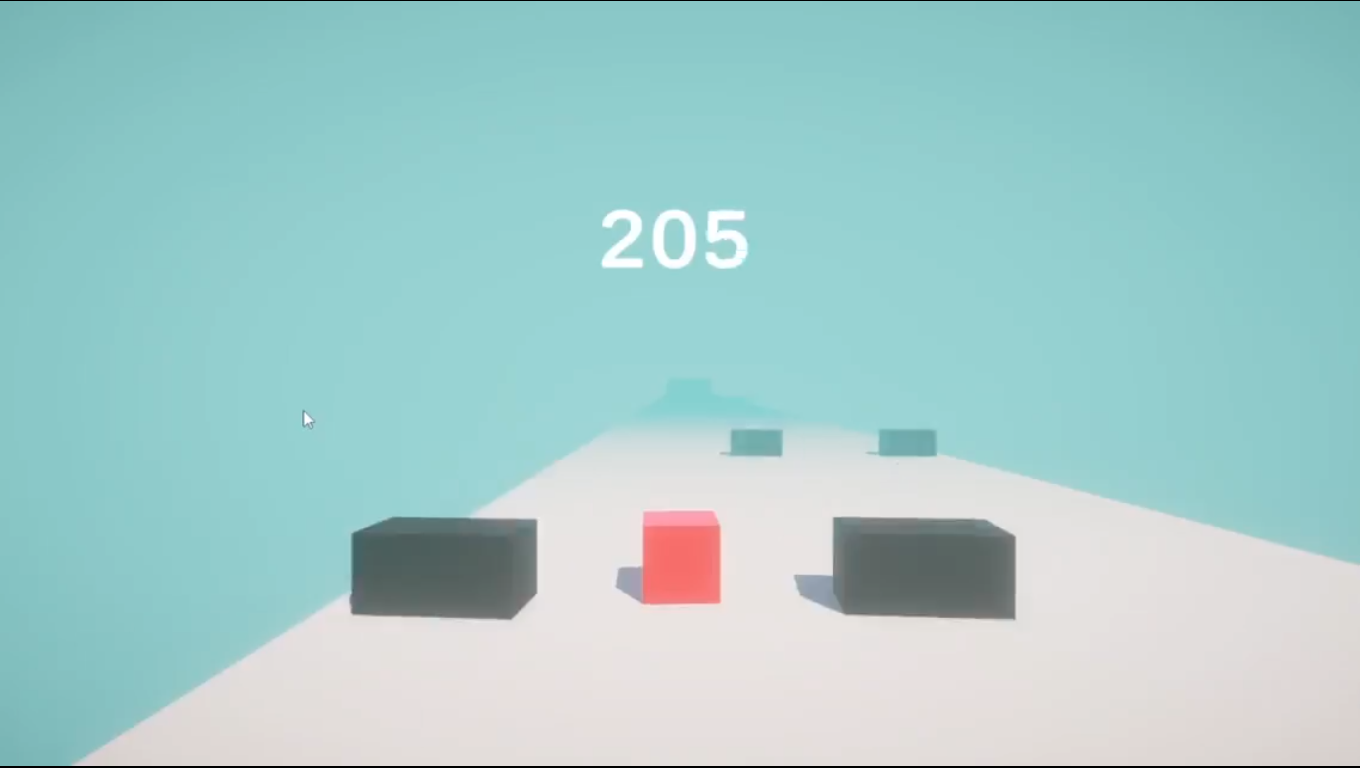
Cube Runner
A fast, physics-driven 3D obstacle runner built in Unity while learning game development hands-on, tutorial side by side with Brackeys.
Guide the cube through the course, dodge each obstacle, and reach the finish.
The Spark
Cube Runner was my introduction to building a complete 3D game in Unity. I made it by watching the Brackeys Unity beginner tutorial series side by side with hands-on practice: pausing, building each feature myself, and seeing how small scripts and Unity components join into a playable loop.
The project turns a simple cube and a few obstacles into a clear challenge: keep moving, steer out of danger, and make it to the end of the track.
Project Brief
Cube Runner is a level-based 3D action runner. The player cube accelerates along a long track; the player uses A / D or the arrow keys to move sideways and avoid static block obstacles. Reaching the finish completes the level, while a collision ends the run.
Core elements
The core loop
Start the level → build speed automatically → steer around obstacles → reach the finish to win, or collide and restart.
Platform
PC, built in Unity as a 3D learning project and played with a keyboard.
My Role & Responsibilities
Role: Solo Developer · Learning alongside Brackeys' Unity beginner tutorials
I made Cube Runner by watching the tutorial side by side with hands-on practice. It was a guided learning project, but I implemented each part in Unity myself to understand the role of the editor, components, physics, scripts, and UI in a working game.
- 3D scene setup: Built the player, ground track, obstacles, and finish area from Unity primitive shapes.
- Physics-based movement: Added a Rigidbody and used forces for automatic forward acceleration and sideways movement.
- Physics tuning: Applied a low-friction slippery physics material to keep the cube from catching, tumbling, or bouncing unexpectedly on the track.
- C# scripting practice: Used Unity lifecycle methods such as
Start(),Update(), andFixedUpdate()in the appropriate parts of the game loop. - Camera and collision systems: Implemented a smooth camera follow and collision checks for obstacles.
- Game flow: Connected game-over, level-complete, and restart behaviour through a central Game Manager and UI overlays.
Development Process
From primitives to a playable track
I started with Unity's basic 3D shapes: a cube for the player, a flattened cube for the ground, and repeated blocks for hazards. This made the level easy to inspect and change while keeping the focus on the fundamental game loop rather than asset production.
Rigidbody movement and the physics update
The player cube uses a Rigidbody, with force applied to create constant forward
motion and lateral steering. I practiced the difference between Unity's frame-based
Update() loop and FixedUpdate(), where physics work belongs, so the
controls remain tied to Unity's physics timing.
A slippery, low-friction physics material helped prevent the cube from snagging on the ground or behaving unpredictably due to friction at the contact surface.
Camera follow that survives an impact
The camera follows the player through a position offset rather than inheriting the cube's rotation. Smoothing the camera position keeps the course readable during normal movement and avoids an erratic view when the cube collides with an obstacle and tumbles.
Collision detection and game states
The collision script uses OnCollisionEnter to identify objects tagged as
Obstacle. On impact, the player movement is disabled and the Game Manager takes
over the state transition. The same central manager handles restarting the scene after a game
over and showing a level-complete state when the finish is reached.
Feedback through UI
Simple UI overlays make the result of each run immediate: a game-over screen after an obstacle collision and a level-complete screen at the end of the track. Building those screens connected game logic to player-facing feedback and completed the loop from launch to restart.
Results
Cube Runner became a complete, playable beginner project: the cube moves through a 3D course, responds to keyboard input, collides physically with obstacles, follows a smooth camera, and transitions between game-over, restart, and level-complete states.
What I practiced
- Using Unity's editor and primitive objects to build a functional 3D level.
- Applying forces through a Rigidbody and separating frame input from physics updates.
- Controlling friction and object behaviour with a physics material.
- Using tags and
OnCollisionEnterto connect collisions to gameplay outcomes. - Coordinating gameplay state, scene reloads, and UI with a Game Manager.
This was a personal learning project, not an original commercial release, so the value of the project is the working build and the foundational Unity systems I practiced while making it.
Retrospective
Cube Runner was an effective first full Unity project because every feature was visible. A line of C# could change how the cube moved; a Rigidbody setting could change the feel of the whole run; and a simple collision could trigger a complete UI state change.
Building it while watching the Brackeys tutorial side by side made the ideas more concrete than passive viewing. I was able to practice the Unity workflow as each concept appeared, then see how physics, camera work, collision detection, and UI depend on each other in one small game.
If I revisited the project, I would extend the tutorial foundation with original additions such as procedural endless tracks, collectibles and score progression, or movement mechanics like jumping, wall-running, and teleporters.